I Spent a Week Testing Samsung One UI 9’s Hidden Driving Tracker: What I Found
Whenever a massive software update drops, everybody rushes to talk about the exact same things. With Samsung’s Android 17-based One UI 9 rollout, the entire internet is fixated on the flashy Galaxy AI upgrades, Call Brief, and the new camera tweaks. Don’t get me wrong, those are great. But when I updated my daily driver and started digging through the deep system menus for TechInfoGet.com, I stumbled across something Samsung barely even mentioned in its official US changelogs.
Tucked away inside the connectivity settings is a built-in telematics tool called Driving Report. If you follow early Samsung software leaks, you might remember hearing whispers about an experimental app called “Driving Insights” back when the first beta builds surfaced. Well, Samsung quietly renamed it during the second beta phase, polished the interface, and shipped it straight to our phones.
Instead of just giving you directions like Google Maps, this tool actively watches how you behave behind the wheel. It grades your braking, clocks your speed, watches how sharp you take corners, and catches you when you mess with your screen at red lights. I decided to switch it on and let my Galaxy phone judge my commute. Here is my honest breakdown of how the system is designed, how it works in the real world, and why you might want to turn it on—or keep it buried.
First Impressions: The UI Design and Layout
When I first opened the Driving Report screen, I was expecting a clunky, text-heavy diagnostic page like the old battery stats menu. Instead, Samsung gave this tool a remarkably clean, card-based layout that fits right in with the rest of One UI 9’s rounded aesthetic.
The dashboard is split into two main views: your individual trip logs and a combined weekly summary. At the top of the screen, you get a clean overview card showing total distance driven, total time spent in the car, and your overall driving behavior trends. Samsung designed the interface so you can read it at a glance without scrolling through endless spreadsheets.
The Color-Coded Map Design
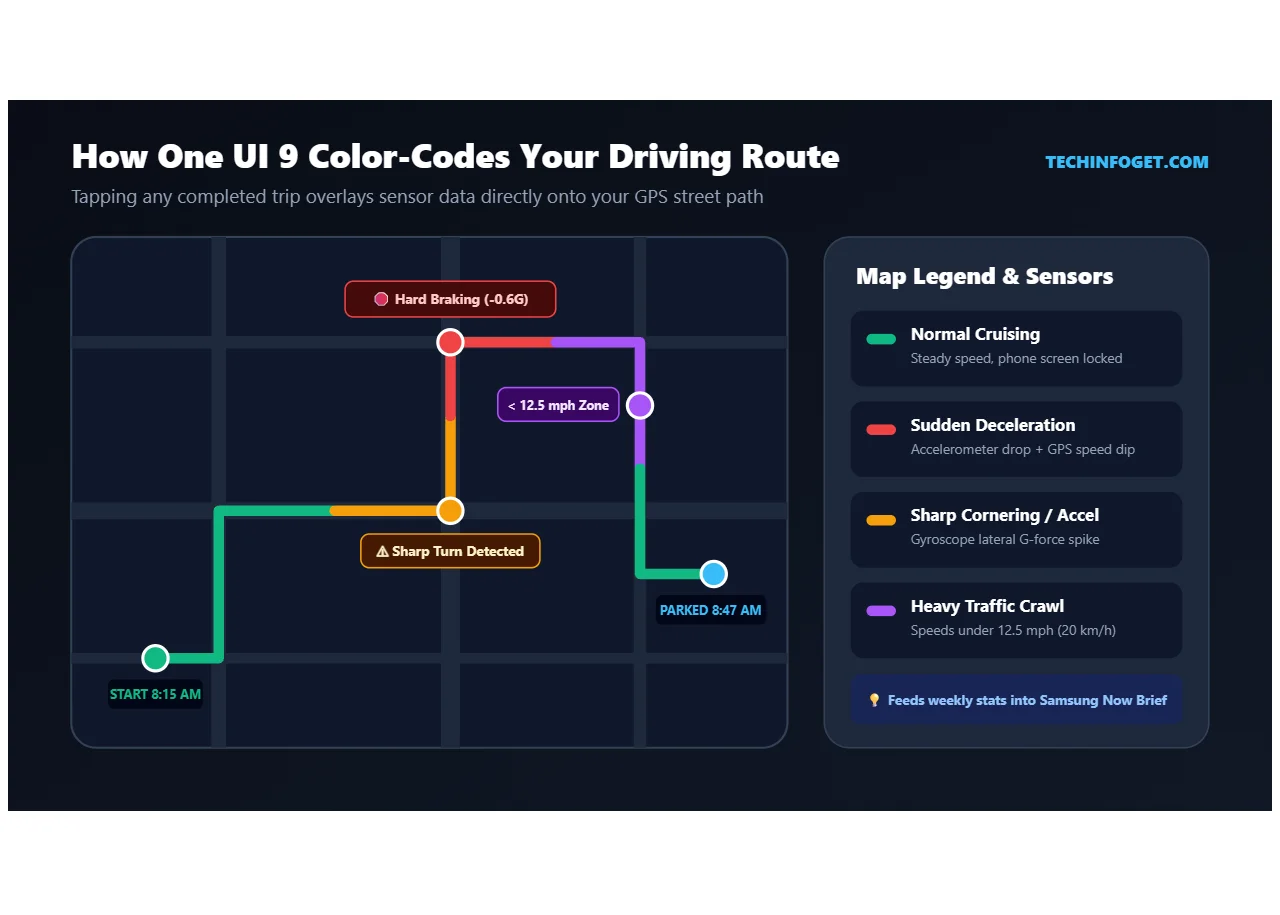
My favorite part of the UI design shows up when you tap on an individual trip. Doing this opens a full route map with timestamps for when you started and parked. When you tap the map itself, One UI 9 overlays a color-coded line across the exact streets you drove on. Smooth, steady driving stays neutral, while problem areas light up in warning colors. You can literally zoom in on a specific intersection and see the exact spot where your phone flagged you for slamming on the brakes.
What also surprised me during my research is how this ties into the rest of the phone. If you use Samsung’s Now Brief feature to get daily updates, Driving Report can feed your weekly road habits right into those morning summary cards. It feels like a native part of the operating system rather than a tacked-on bloatware app.
How It Works Without Android Auto (The Bluetooth Trick)
Before I tested this, my biggest question was hardware compatibility. A lot of people drive older cars that don’t have fancy infotainment screens, wireless Android Auto, or Apple CarPlay. If a feature requires a brand-new dashboard to work, half my readers on TechInfoGet can’t even use it.
Thankfully, Samsung engineered this around a basic Bluetooth handshake. You do not need Android Auto, and you definitely don’t need to buy one of those plug-in OBD-II port scanners that car insurance companies mail out.
Once you tell One UI 9 which Bluetooth device belongs to your car’s stereo—or even a cheap $15 Bluetooth FM transmitter plugged into your cigarette lighter—the system automates everything. The second your phone connects to that specific Bluetooth profile and detects forward movement via GPS, it starts logging the trip in the background. When you turn off the ignition and the Bluetooth disconnects, the trip ends, and your phone pings you with a post-drive notification summary.
The 5 Metrics Your Galaxy Phone Actually Tracks
During my testing, I wanted to see just how sensitive the phone’s internal sensors (the accelerometer, gyroscope, and GPS) really are. When you dig into a completed trip report, Samsung breaks your driving style down into five distinct categories:
| Tracked Metric | What Triggers It | How Sensors Detect It |
|---|---|---|
| Sudden Deceleration | Hard braking or slamming the pedal at the last second. | Accelerometer senses a rapid drop in forward G-force paired with GPS speed drops. |
| Rapid Acceleration | Flooring the gas pedal from a dead stop or aggressive highway passing. | Gyroscope pitch changes combined with sudden GPS velocity spikes. |
| Sharp Turns | Taking corners or highway off-ramps too fast. | Lateral motion sensors and compass heading shifts. |
| Phone Distractions | Unlocking the screen, texting, or switching apps while moving. | One UI screen-on state cross-referenced with active vehicle speed. |
| Low-Speed & Traffic Zones | Crawling in bumper-to-bumper congestion. | GPS flags segments where your speed stays below 12.5 mph (20 km/h). |
My Real-World Sensor Test
To see if the phone was actually paying attention, I purposely took a sharp corner into an empty parking lot and tapped the brakes harder than usual. Sure enough, ten minutes later when I parked at home, the post-trip notification popped up. Opening the map showed a bright marker right at the entrance of that parking lot.
The phone distraction tracker is also brutally honest. I unlocked my phone while rolling slowly through a drive-thru lane to pull up a coupon app. Because the car was moving and connected to Bluetooth, Driving Report counted that as a behind-the-wheel phone interaction. It doesn’t care if you are on a major highway or crawling through a parking lot; if the wheels are turning and the screen is unlocked, it goes on your permanent record for the week.
Where to Find and Enable Driving Report in One UI 9
Samsung left this feature completely turned off out of the box. If you don’t go looking for it, it will never run in the background. When I was researching where Samsung hid the toggle, I initially checked Digital Wellbeing and the Safety menus, and came up empty. For some reason, Samsung decided to bury it inside the hardware connection settings.
If you want to try this on your own Galaxy phone, follow this exact path:
- Unlock your phone, open the main Settings app, and tap on Connected devices.
- Scroll down past Quick Share and Android Auto until you see Driving report. Tap it.
- Because this is your first time opening it, the system will ask for Location (set to “Allow all the time”) and Physical activity permissions. Approve both.
- Once you are on the main dashboard, tap the three-dot menu icon in the top-right corner and select Settings.
- Tap on Vehicles. Here, you will see a list of your paired Bluetooth devices. Flip the switch next to your car’s name. (If you haven’t paired your car stereo yet, hit the + button in the top corner to pair it now).
- Back out one screen and make sure the toggle for Auto start trip when Bluetooth connected is switched on.
Setting Up Commute Locations and Geofencing
While you are inside that three-dot Settings menu, you will notice an option called Locations right underneath the Vehicles tab. During my testing, I found that plugging in my Home and Work addresses here unlocks much better weekly insights. It allows the AI to separate your normal daily commute from random weekend road trips. Early beta builds also hinted at vehicle geofencing alerts tied to this menu, which is huge if you let someone else borrow your car and want to know where it goes.
The Flaw Nobody Talks About: Phones Don’t Have Eyes
After living with this tracker for several days, I noticed one glaring limitation that you need to keep in mind. Your Galaxy phone is sitting in a cupholder, clipped to an air vent, or resting in your pocket. It relies entirely on blind physics—it cannot actually see the road in front of you.
On my third day of testing, a delivery van cut across two lanes of traffic right in front of me without a blinker. I had to slam on my brakes to avoid rear-ending him. Objectively, that was good, defensive driving that prevented an accident. However, when I got home and checked my One UI 9 Driving Report, the app penalized me for “Sudden Deceleration.”
Similarly, if you are merging onto a fast-moving freeway with a very short on-ramp, you have to accelerate rapidly to match the speed of traffic safely. Your phone doesn’t know you’re merging onto a highway; it just feels the G-force and logs it as aggressive acceleration. And what if your passenger picks up your unlocked phone to change the Spotify playlist? The phone logs that as driver distraction.
Who Is This Actually Built For?
If the system can’t see traffic hazards, why did Samsung spend time building a full telematics suite into One UI 9? From my perspective, there are three main reasons this exists:
- Breaking Bad Screen Habits: Most of us don’t realize how often we instinctively tap our screens while driving until a chart shoves the exact number in our faces at the end of the week. Seeing that you unlocked your phone 14 times during a 30-minute drive is a massive wake-up call.
- Keeping Tabs on Teen Drivers: If you hand down a Galaxy phone to your kid who just got their driver’s license, you can check their Driving Report at the end of the week. You get a map of where they drove, how fast they went, and whether they were texting behind the wheel—without paying monthly fees for creepy third-party spyware apps.
- Saving Fuel and Brakes: Constant hard braking and flooring the gas pedal destroys your fuel economy and wears out your brake pads early. Smoothing out those color-coded lines on your route map genuinely saves money at the gas pump.
How to Turn Off Driving Report Completely
Let’s be real: not everyone wants their smartphone acting like a backseat driver, and plenty of people are rightfully paranoid about location tracking. Even though this data sits locally on your phone rather than being sold straight to an insurance broker, it still drains a tiny bit of extra battery by keeping GPS active during every drive.
If you turned it on to test it out and decide you hate it, shutting it down takes ten seconds. Go back to Settings > Connected devices > Driving report, tap the three-dot menu, open Settings, and turn off the toggle for your car under the Vehicles menu. If you want to completely choke it off, go into your phone’s main App Settings, find Driving Report, and revoke its Location permission. Without GPS access, the tracker goes completely dormant.
Final Verdict
It is pretty wild that Samsung slipped a feature this fleshed-out into One UI 9 without making a big deal about it on stage. While it can occasionally judge you unfairly when traffic gets chaotic, having a free, private, hardware-free driving analyzer built straight into your settings menu is a seriously cool utility. Give it a test run for a week—you might be surprised by what your map looks like.